A client sends a scanned PDF at the end of the day, the translation deadline is close, and the project manager still has to turn the scan into a Word file before anyone can translate it. An OCR API can remove much of the manual transcription, but it doesn’t automatically deliver a formatted, translated DOCX.
The gap matters because a scan is a picture of a page, not a document with editable paragraphs and tables. OCR reads the picture; your workflow still has to track the job, reconstruct the page, send text for translation, and check the result.
This guide explains how a translation agency can automate scan-to-Word conversion with a REST API, what to compare across OCR services, and where human review belongs. The focus is the handoff between OCR and an editable Word document, not a claim that one API handles the whole translation project.
What an agency needs to build beyond an OCR call
An OCR REST API is a service that accepts a document over HTTP and returns recognized text or document data. A scan-to-Word workflow adds file handling, asynchronous job management, layout reconstruction, and quality review around that service.
A single API request can look deceptively simple in a demo. Production work is different: PDF analysis can take long enough to run asynchronously, input and output may live in cloud storage, and the response may contain data rather than a file a translator can open in Word.
The practical sequence is:
- Validate the uploaded file and page count.
- Store the source document in an approved location.
- Submit the OCR request and record its provider job identifier.
- Check the job until the provider reports completion.
- Retrieve the output and convert it into an internal representation.
- Generate an editable DOCX with the required structure.
- Route uncertain text and layout-sensitive pages to human review.
- Send approved text into the translation workflow, then check the translated Word file.
Google Cloud Vision documents PDF and TIFF text recognition as an asynchronous workflow. The source file must be in a Cloud Storage bucket, and the JSON output goes to a Cloud Storage bucket. Its REST method returns an Operation resource, so the integration needs job tracking and a storage handoff, not just a synchronous request (Google Cloud Vision PDF/TIFF documentation, REST reference).
Azure Document Intelligence also uses an asynchronous analyze flow in the documented API version 2024-11-30. A request to the analyze endpoint returns 202 Accepted, and the Operation-Location response header gives the URL to poll for the result (Azure Analyze Document REST API, version 2024-11-30).
Google Cloud Vision documentation says: “Output from a PDF/TIFF request is written to a JSON file created in the specified Cloud Storage bucket.” (Google Cloud Vision PDF/TIFF documentation)
The JSON file is an OCR result, not an editable Word document. An agency should design for the file and job lifecycle before evaluating the apparent simplicity of a sample API call.
A useful internal job record connects the client project, source file, OCR provider, provider operation ID, current state, output location, and review status. Without that connection, a completed OCR request can become an orphaned result that staff have to find by hand.
Compare OCR APIs by their output and job model
OCR providers differ in accepted input, response structure, and how clients retrieve a finished analysis. Those differences shape the code you need to write and the type of Word reconstruction your team can support.
| Option | Documented inputs and output | Async behavior | Integration implication |
|---|---|---|---|
| Google Cloud Vision PDF/TIFF OCR | PDF or TIFF input; JSON output in Cloud Storage | Returns a long-running operation name; check status and retrieve output after completion | Needs Cloud Storage access, operation tracking, and a JSON-to-DOCX stage |
| Azure Document Intelligence Read v4.0 | PDF, image and Office formats; text or markdown output options | Analyze request returns an operation URL to poll | Needs polling, output normalization, and a separate DOCX-generation stage |
| Document-processing APIs with structured extraction | Structured JSON or XML may be available, depending on the service | May offer separate calls or a combined submission workflow | Confirm which fields, coordinates, and document structures can be retrieved |
Google Cloud Vision’s documented asynchronous files:asyncBatchAnnotate method uses a project-based REST endpoint and returns an Operation resource. The service requires access to the source and output buckets through service-account permissions; API-key authentication isn’t supported for this PDF/TIFF asynchronous flow (Google Cloud Vision REST reference, PDF/TIFF documentation).
Azure Document Intelligence Read v4.0 accepts PDF, JPEG/JPG, PNG, BMP, TIFF, HEIF, and Office files including DOCX, XLSX, PPTX, and HTML, according to documentation for API version 2024-11-30. The model identifies printed and handwritten text, paragraphs, lines, words, locations, and languages (Azure Read model documentation).
The Azure analyze endpoint accepts a document as a base64 value or URL source. A request can also include a pages parameter for selective processing and a locale hint such as en or en-US, as described in the API version 2024-11-30 documentation (Azure Analyze Document REST API).
Microsoft Learn says: “For best results, provide one clear photo or high-quality scan per document.” (Azure Read model documentation)
The quality of the source scan remains part of the integration decision. An API doesn’t turn a blurred, skewed, or obscured page into reliable text simply because the request completed successfully.
When comparing providers, ask for representative output before you commit to a design. Check whether you can access page numbers, line boundaries, coordinates, language information, tables, and any confidence values available in the chosen model. The relevant question isn’t only “Can it read this PDF?” but “Can our system use the result to build a Word file that a translator can check?”
A service that returns structured data can still leave DOCX generation to your team. A service that returns searchable PDF can make the PDF text-searchable without creating Word paragraphs or tables. The Azure Read model can return a searchable PDF with embedded recognized text, but its documentation describes that as PDF output, not a DOCX export (Azure Read model documentation).
Why extracted text isn’t a Word document
OCR extraction and DOCX creation are separate technical jobs because a Word document stores content and formatting in structures that plain text doesn’t carry. A scan-to-Word converter has to map recognized text and layout into those structures.
A scanned page begins as pixels. The OCR system identifies character sequences and may return lines, words, locations, or document elements. Your application then has to decide which text belongs in a heading, which lines form a table, how labels relate to fields, and what belongs in a header or footer.
DOCX is an OOXML format specified by ISO/IEC 29500. The Library of Congress describes a DOCX package as ZIP-based and notes that the format supports paragraph and run properties, such as formatting applied to parts of a paragraph (Library of Congress DOCX format description). A pipeline can’t recreate those relationships just by saving a block of extracted text with a .docx extension.
For a document with simple paragraphs, reconstruction may mean placing lines into Word paragraphs and maintaining page order. For a form, a useful result may require aligning labels and values. For a table, the application needs to infer rows and columns rather than preserve a sequence of words that happens to appear near one another on the scan.
An OCR API’s output format also affects this work. Azure’s outputContentFormat options in the documented API are text and markdown. The documentation describes text as plain text without formatting and markdown as a representation that can include elements such as section headings and tables. Neither option is itself a Word file (Azure Analyze Document REST API, version 2024-11-30).
A good implementation therefore separates the provider response from the final DOCX. Normalize results into an internal representation that your application controls, then build Word output from that representation. The internal layer makes it easier to change providers or adjust reconstruction rules without rewriting every downstream translation handoff.
| Document element | What OCR may provide | What DOCX generation still has to decide |
|---|---|---|
| Paragraphs | Recognized words and line order | Paragraph boundaries, styles, and reading order |
| Tables | Text, lines, locations, or table elements, depending on the model | Row and column structure, cell content, and reading order |
| Forms | Recognized labels and values | Which value belongs to which field and how fields align |
| Stamps and signatures | Text may be recognized, partially recognized, or missed | Whether to preserve the image, transcribe readable text, or flag review |
| Page layout | Coordinates or page relationships, depending on output | Page breaks, spacing, and placement in the Word file |
The distinction matters before translation too. If a table becomes a stream of lines, a translator may receive text with unclear cell relationships. A translated paragraph can also grow or shrink, so the document-generation step needs a way to handle text that no longer fits the source layout.
For more about how scans can be prepared and checked before translation, see translating scanned documents with OCR while preserving layout and scanned PDF to editable Word options.
Handle asynchronous OCR jobs as durable workflow states
An asynchronous API accepts a request and finishes the analysis later. The integration returns to the provider for status updates and retrieves the result after completion, so your agency’s application must preserve job state between those events.
A simple but fragile design treats the initial HTTP request as the whole workflow. If a worker restarts after submission, the agency may lose the provider’s operation ID. If a status check times out, the project manager may not know whether OCR is still running or whether the result needs retrieval.
Use a durable state model such as received, validated, submitted, processing, completed, retrieved, reconstructed, review_required, and ready_for_translation. These are implementation labels, not provider statuses. Keep the distinction clear: an agency job can have its own state while the OCR service reports an operation state.
A practical sequence looks like this:
- Save the file and create the agency’s internal job record.
- Validate the file and capture its metadata.
- Submit it to the OCR provider.
- Save the provider operation ID or operation URL immediately.
- Schedule status checks without blocking a user-facing request.
- Retrieve the output when the provider reports completion.
- Store the response alongside a reference to the source.
- Normalize, reconstruct, and run review checks.
- Mark the job ready for translation only after the required checks pass.
Google Cloud Vision returns a long-running operation name. The client checks the Operations API for status and retrieves JSON from the configured bucket after completion. Google also documents that the source and output buckets need service-account access, including write access to the output bucket (Google Cloud Vision PDF/TIFF documentation).
Azure’s Operation-Location header supplies the polling URL for an analyze request in the API version 2024-11-30. Save that value as part of the job record rather than reconstructing it later from assumptions about a provider endpoint (Azure Analyze Document REST API, version 2024-11-30).
A job may fail before OCR begins, fail during analysis, or complete with content that still needs manual review. Those outcomes should not all become a generic “OCR error.” Give staff a clear failure state and preserve enough information to decide whether the next action is a file correction, a retry, a different processing path, or human transcription.
Retries need special care. A client retry after a network timeout can submit the same document twice if the first request succeeded but the application didn’t save the response. Use an agency-side idempotency strategy, such as a stable internal job key and a record of each submission, so a recovery process can check what happened before creating another provider job.
The same principle applies to polling. A temporary failure to reach the provider doesn’t prove that the OCR job failed. Keep provider operation status and agency worker status separate, and give a completed job a clear path to output retrieval and downstream processing.
Build quality gates around the scan, not just the API response
A successful API response means the request completed; it doesn’t guarantee that the text is complete or that the reconstructed DOCX is useful for translation. Quality assurance should check the source, OCR output, and generated Word file as separate things.
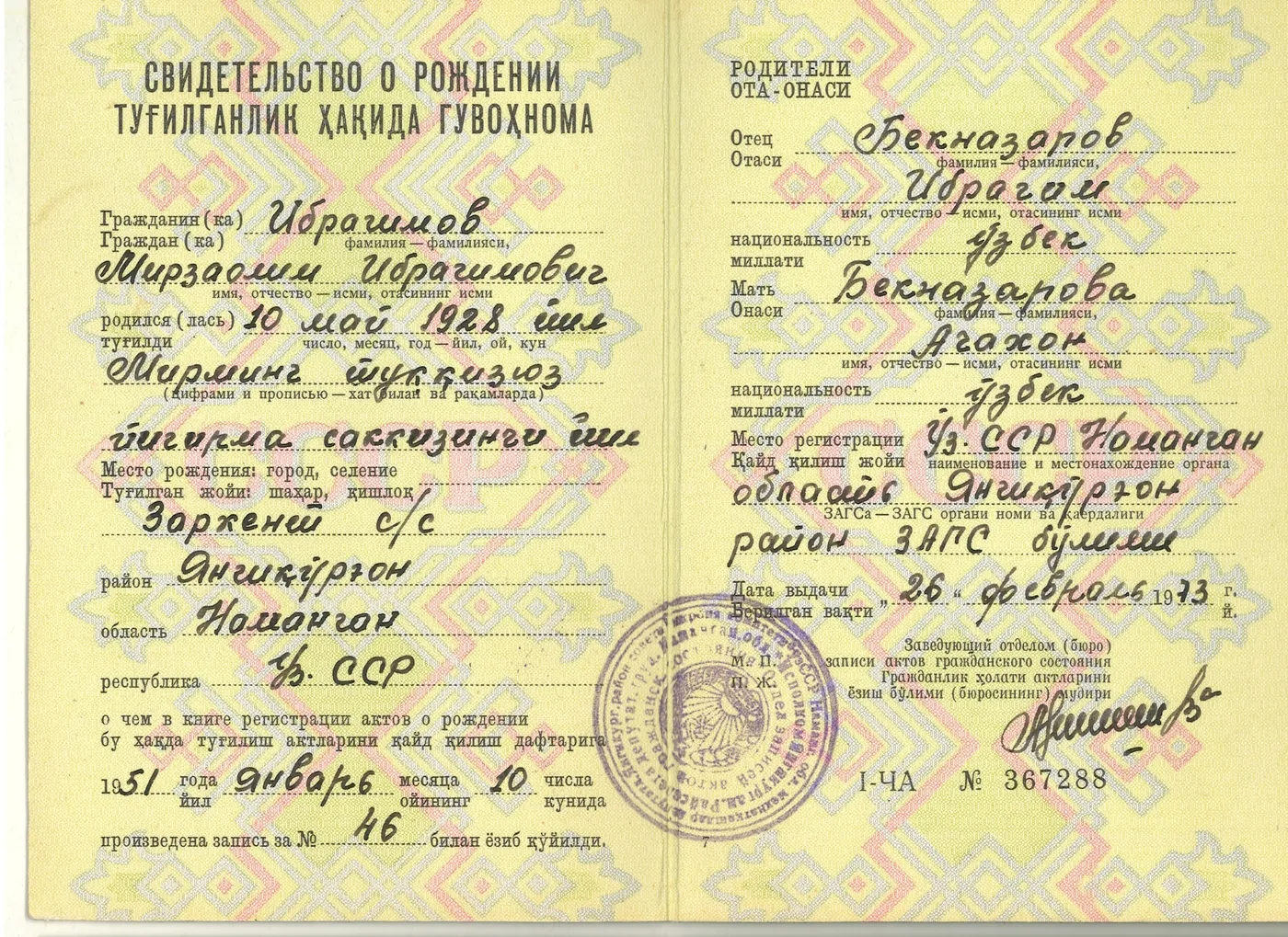
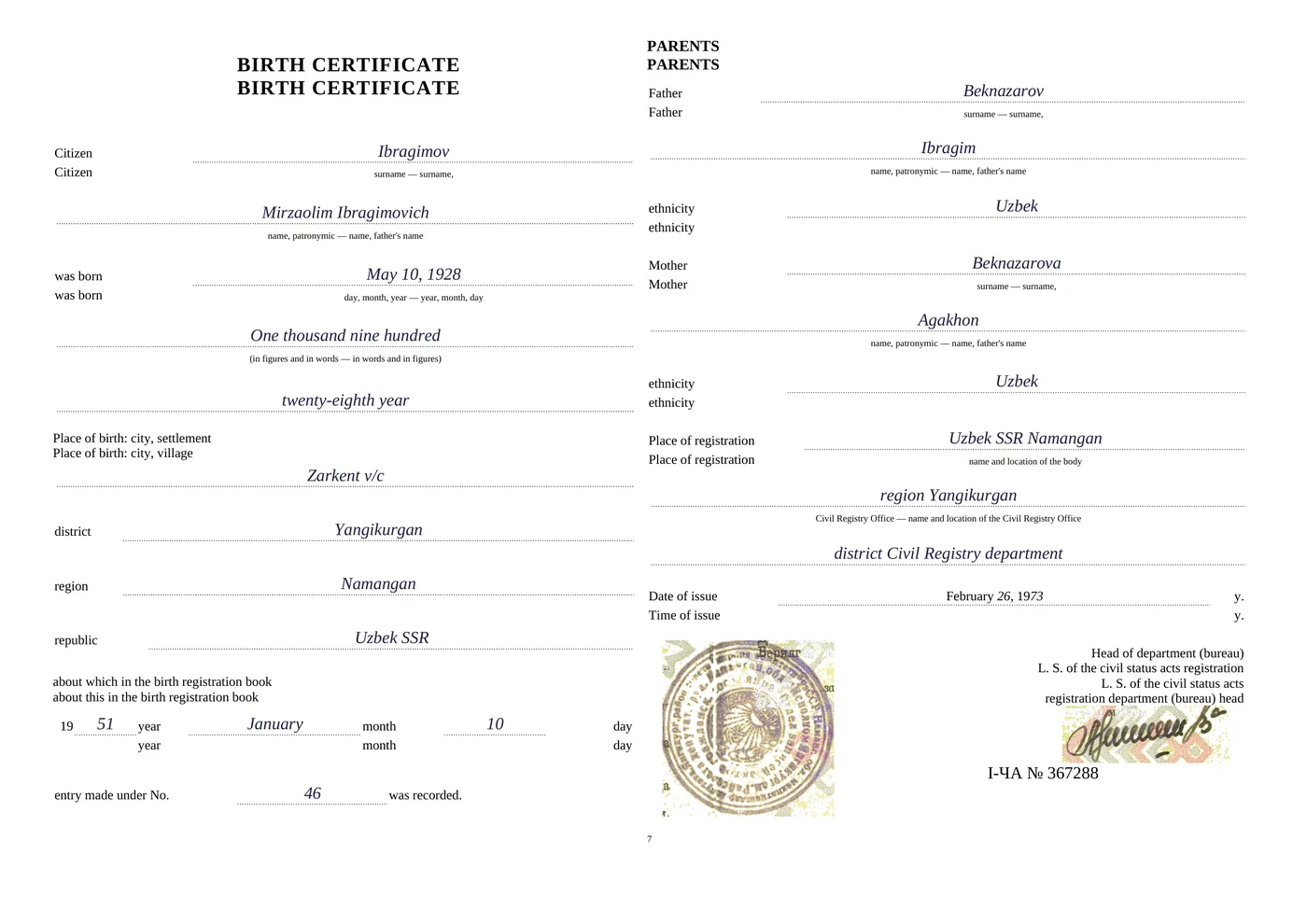
First, validate the input. Check that the file opens, the format is supported, a password-protected PDF has been unlocked, and the page count fits the provider’s documented limits. Azure’s Read model documentation says password-locked PDFs must be unlocked before submission and recommends a clear photo or high-quality scan (Azure Read model documentation).
Provider limits are specific to a model, version, and service tier. Azure Document Intelligence v4.0 documentation lists PDFs and TIFFs up to 2,000 pages, with only the first two pages processed on the free tier; the documented maximum analyzed file size is 500 MB for S0 and 4 MB for F0 (Azure Read model documentation). Google Cloud Vision’s documented asynchronous PDF/TIFF OCR accepts files up to 2,000 pages, and requests that exceed that limit return an error (Google Cloud Vision PDF/TIFF documentation). Confirm current documentation for the service and tier you actually use.
Second, inspect the OCR result. Where the response exposes confidence or location information, use it as a review signal rather than a promise that a page is correct. A low-confidence word may be a name, a reference number, or an ordinary word; its importance depends on the document. A page that looks visually simple can still contain a faint stamp or an easily confused digit.
Third, compare the generated DOCX with the source page. Check reading order, missing lines, headings, table boundaries, page breaks, and text placed beside form labels. A useful check looks for problems in the document structure, not only spelling.
Finally, check whether the result is ready for translation. The project manager should know which pages need human review and why. A practical review queue can mark uncertain text, layout-sensitive pages, handwriting, and missing or ambiguous content separately, so staff can make a targeted decision instead of rechecking every page from scratch.
| Gate | Check | What happens if it fails |
|---|---|---|
| File validation | Supported format, readable file, page count, password status | Request a usable source or split the job according to provider limits |
| OCR result | Missing text, uncertain characters, language and page order | Route affected content to review or repeat processing after source correction |
| DOCX reconstruction | Tables, labels, paragraph order, page structure | Correct the document-generation rules or review the page manually |
| Translation handoff | Source text is complete and document structure is understandable | Hold the file until the source content is checked |
For a weak original, manual review isn’t a failure of automation. A poor-quality scan checklist can help distinguish source problems from OCR or reconstruction problems before the agency spends time correcting the wrong stage.
How it works in ChatsControl: a user uploads a scanned PDF or image, the system reads the page and builds a formatted Word copy, then renders and checks that copy against the page before translating it. The workflow assigns a good, fair, or poor quality grade and counts words that the check still finds missing. Handwriting and very degraded scans remain unreliable, so those files still need a human with the original in hand. The tool is a document-translation workflow, not a full CAT tool or TMS.
Compare ways to implement the agency workflow
An agency can build the whole pipeline around a cloud OCR API, use a document-processing service, or choose a document-translation workflow for the part where OCR, Word reconstruction, and translation need to stay connected. The right choice depends on how much control the agency needs over each stage.
| Approach | What the agency controls | Main work left to build | Best fit |
|---|---|---|---|
| OCR API plus in-house DOCX generator | Provider choice, data flow, reconstruction rules, review and translation handoff | Job orchestration, storage, normalization, Word generation, quality gates | Teams with engineering capacity and document-specific rules |
| Document-processing API | Processing and extraction features exposed by the provider | Confirm output structure, connect it to DOCX generation and translation | Teams that need structured extraction and want a provider-managed processing layer |
| Document-translation workflow | Document upload, OCR-to-Word handling, translation and review flow | Check language coverage, scan quality limits, privacy needs, and CAT/TMS fit | Teams that need a formatted translation path without building every stage |
A dedicated OCR API gives the agency flexibility, but flexibility brings ownership. Your team must maintain the status workflow, cloud storage permissions, output normalization, DOCX generation, and the rules that decide when a human should inspect a page.
A document-processing API may package file submission, status tracking, and structured output into a more focused service. The agency still needs to verify that the retrieved data fits its own translation and Word requirements. Extracted JSON or XML isn’t automatically a document a translator can edit.
A document-translation workflow can make sense when the agency’s immediate need is a formatted translated file, rather than a reusable OCR service for many downstream systems. ChatsControl is one such option: it accepts scanned PDFs and images, reads the pages, and returns a formatted Word file for translation. Its bilingual side-by-side review shows source and translation together, which gives a reviewer a way to inspect the translated text against the original. Its limitations matter too: it isn’t a full CAT tool or TMS, and handwritten or very degraded scans still need human review.
The choice isn’t binary. An agency can use a cloud OCR API for a specialized ingestion pipeline and keep a separate document-translation workflow for work where the main requirement is to deliver a formatted translated Word file. Decide which system owns the source, which system owns the translation, and where staff review the result.
Before selecting a route, test it with documents that represent your actual intake: a clean printed page, a table, a form, a page with a stamp, and a difficult scan. Don’t judge the workflow only by whether it recognizes ordinary printed paragraphs. The test should reveal whether the output is useful for your translators and whether staff can identify uncertainty without guessing.
Estimate cost and operational effort before choosing a provider
API pricing is only one part of the cost of automated scan-to-Word conversion. The agency also pays in engineering time, cloud storage, document reconstruction, exception handling, and human review.
Google Cloud Vision’s published pricing page accessed for this article lists document text detection at $1.50 per 1,000 units for the 1,000-to-5,000,000 tier, with the first 1,000 units each month free. The page bills multipage PDF document text detection per page; confirm the live rate and any storage charges before budgeting (Google Cloud Vision Pricing). Prices can change, so a project estimate should state the date checked and the tier used.
For an agency, the relevant calculation is not simply “OCR price per page.” A more useful model is:
Estimated processing cost = OCR usage + storage and transfer + reconstruction and maintenance + review of exceptions.
The OCR line can be estimated from the provider’s current rate and expected document volume. The other terms depend on the agency’s own system and document mix; don’t use a provider’s per-page rate as a proxy for the cost of producing a checked, editable Word file.
| Cost area | What to include in the estimate | Question to answer |
|---|---|---|
| OCR usage | Provider’s current unit or page charges | Does billing count pages, units, or another measure? |
| Storage and transfer | Source documents, OCR output, retrieval and retention | Where do inputs and outputs live, and who can access them? |
| Engineering | API integration, job tracking, normalization and DOCX generation | Who maintains the pipeline when a provider changes its response or limits? |
| Review | Time spent on uncertain text and layout-sensitive pages | Which document types need a human check before translation? |
| Rework | Resubmissions, source corrections, and Word fixes | Can the system distinguish a bad scan from an integration failure? |
A useful pilot doesn’t need an invented accuracy target. It needs a representative set of real, authorized documents and a clear record of what failed: text recognition, layout reconstruction, translation handoff, or review routing. Compare the human effort with the current manual process, and keep the results separate by document type.
The free tiers and service limits also affect operational planning. For example, Azure’s v4.0 documentation states that the free tier processes only the first two pages, while its documented file-size limits differ by tier (Azure Read model documentation). A test that fits a free tier may not reflect the production workflow, so make the tier part of the evaluation record.
Protect client files and make failure visible
Sending a client scan to a cloud OCR provider is a data-handling decision as well as an engineering choice. The agency should check its client agreement, confidentiality terms, provider configuration, access permissions, retention settings, and any data-residency requirements before it submits documents.
Google Cloud Vision’s documented PDF/TIFF asynchronous process uses Cloud Storage for the source and JSON output. The documentation requires service-account access to those buckets and write access to the output bucket; the asynchronous requests don’t support API-key authentication (Google Cloud Vision PDF/TIFF documentation). Those requirements should shape the agency’s access design, not be treated as a deployment detail to resolve after launch.
Azure’s documented analyze endpoint accepts a base64 document or a URL source (Azure Analyze Document REST API). If the agency uses a URL, check who can access it and how long it stays valid. If the agency submits encoded content, check how that content is handled in application logs, retries, and error reporting.
Create a retention plan for the source, OCR output, generated DOCX, and temporary copies. A project may need the source available for review, but that doesn’t mean every intermediate file should remain accessible indefinitely. Restrict access to the people and services that need it, and keep a record of deletion and retention rules.
Failure visibility matters just as much as data protection. A project manager should be able to tell whether a file is waiting for OCR, finished processing, awaiting retrieval, held for a quality check, or blocked because the source is unsuitable. A generic red “failed” label doesn’t say what to do next.
Build separate messages for common conditions: unsupported format, page limit exceeded, password-protected file, failed provider request, output not found, unreadable scan, and reconstruction issue. Don’t tell staff to retry a source-quality problem as if it were a temporary network fault.
A final operational checklist before rollout:
- Confirm that the client has authorized the processing path.
- Check provider access controls, storage location, retention, and deletion settings.
- Record the provider operation ID or polling URL against the agency job.
- Store OCR output and generated DOCX with a clear link to the source.
- Show staff what needs review instead of presenting every result as equally reliable.
- Keep a manual path for handwriting, degraded scans, and documents whose layout the system can’t reconstruct safely.
FAQ
How can a translation agency automate scanned PDF to Word conversion with a REST API?
Validate and store the file, submit an asynchronous OCR job, track its operation ID, normalize the result, generate DOCX, and route uncertain pages to review. OCR extraction and Word generation are separate stages.
Does an OCR API return an editable DOCX or only extracted text?
The APIs described here return JSON, text, markdown, structured data, or searchable PDF, not a ready-made editable DOCX. Your application needs a separate Word-generation step.
How should an agency handle asynchronous OCR jobs for multipage PDFs?
Persist each provider’s job ID and state, poll the documented status endpoint or operation resource, and retrieve results only after completion. Keep the source file and output location linked to the agency’s internal job.
What should an agency check before sending client scans to a cloud OCR API?
Check client permissions, confidentiality terms, storage location, access controls, retention and deletion settings, and whether the provider’s cloud processing meets the agency’s data requirements.
How much does OCR API processing cost per page?
Google Cloud Vision’s pricing page accessed for this article lists $1.50 per 1,000 document text detection units for the 1,000-to-5,000,000 tier, with the first 1,000 units each month free. Confirm current rates and storage charges before budgeting.
Can OCR preserve the original scan’s layout in a Word document?
OCR output can include text, locations, lines, or structured elements, but preserving layout in DOCX requires your own reconstruction logic or a separate document workflow. Plain text alone can’t recreate tables, fields, or page structure.