A scan that looks like a normal PDF can still be a stack of pictures, and Trados Studio can’t translate words it can’t extract. For a translator, the practical question isn’t just which tool can run OCR. It’s which route will produce text you can check, edit, and bring into the project without losing the document’s structure.
PDF Assistant remains one possible route, but it isn’t the only one, and its availability or behavior shouldn’t be assumed from an older walkthrough. The alternatives include opening the PDF in Microsoft Word, using external OCR or conversion software, preparing a searchable PDF, and using a document-translation tool when a CAT project isn’t necessary.
The choice depends on what the job needs at the end: editable segments in Studio, a searchable source file, or a translated document that follows the original layout. Each route has a different failure point, so treat conversion as a preparation step to inspect, not a button press to trust.
What you need to do before translating an image-only PDF
An image-only PDF contains page images rather than selectable text. OCR, short for optical character recognition, reads the marks in those images and turns them into machine-readable text. Without that step, a CAT tool has no words to segment or count.
Start by testing the file, not by guessing from its appearance. Open the PDF and try to select a sentence. If you can highlight words and copy them into a text editor, the file contains selectable text. If selecting a page only draws a rectangle around the image, the page needs OCR before a text-based workflow can work.
A PDF can mix selectable text, scanned images, and vector elements on the same page. A letterhead may be digital text while the body is a scan, or a stamp may be an image placed over an otherwise editable document. Check several pages, including pages with tables, stamps, handwritten notes, and unusual layouts. One successful text selection doesn’t prove that every page is ready.
RWS documentation says Studio can work with editable and non-editable PDFs, but non-editable PDFs are converted to Word for translation and the translated output is also Word. The same documentation says the built-in PDF technology cannot convert a PDF that consists only of a scanned page image. That distinction matters: Studio’s PDF file-type settings can influence layout recovery, but they don’t supply missing OCR for an image-only page (RWS PDF documentation).
RWS documentation states: “If a PDF file contains merely a scanned picture of the underlying document, then the new technology will not be able to convert the document.”
That statement describes the built-in conversion limitation, not every possible route for preparing a scan. Add OCR or create an editable Word file before expecting a CAT tool to work with the page’s text.
The first decision is the output you need:
| Required result | Route to test first | What still needs checking |
|---|---|---|
| Editable segments in a Trados project | Convert or OCR, then prepare DOCX | Text accuracy, tags, segmentation, tables, and page layout |
| A searchable copy of the scan | Add an OCR text layer to the PDF | Reading order, recognized words, and Studio compatibility |
| A translated document with a similar page layout | Use a document workflow that handles scans | Recognition quality, visual comparison, and limitations on handwriting |
| A faithful translation of a complex or degraded page | Ask for the original source file or arrange human review | Source access, terminology, and page-by-page verification |
RWS recommends asking for the original source format when possible. PDF is a workaround that can add localization effort, especially when the source is only a scan (RWS notice on PDF conversion technology). A DOCX, IDML, or other editable source can avoid part of the reconstruction work. If the source file doesn’t exist, pick a conversion route based on the task rather than assuming one tool solves every problem.
PDF Assistant: what it does and what to verify
PDF Assistant is a Trados add-in intended to prepare PDF content for translation. RWS describes its conversion approach as using Microsoft Word behind the scenes to turn PDF into DOCX. The walkthrough also describes selecting which extracted images should receive OCR, rather than applying OCR indiscriminately to every image in the file (RWS PDF Assistant walkthrough).
That selective OCR can matter when a PDF contains both digital text and image elements. A page might include a scanned chart or an embedded image while the surrounding paragraphs are already text. Processing only the relevant images can avoid treating every page element as if it were a scan. The resulting DOCX still needs a visual and text review.
RWS’s walkthrough says:
“This app is capable of converting most PDF files into DOCX but does not guarantee that conversion will be 100% successful.”
The practical point is simple: conversion creates a draft document, not proof that the draft matches the source. RWS warns that OCR can introduce recognition errors or omissions, and that PDF conversion can shift text and image placement, distort complex layouts, or be affected by missing fonts and security restrictions (RWS PDF Assistant walkthrough).
The walkthrough says Microsoft Office must be installed for PDF Assistant, with validation performed using Office 365; older Office versions were not tested. That compatibility statement dates from the walkthrough published on 2023-10-30, so check the current app requirements before building a workflow around it (RWS PDF Assistant walkthrough). RWS documentation lists PDF Assistant as a free application available through Studio’s Add-Ins > RWS AppStore and the RWS AppStore website, but that Studio 2024 documentation, accessed 2026-01-01, doesn’t establish current availability for every Studio 2026 installation (RWS PDF documentation).
A Studio 2026 community discussion illustrates why version checks matter. One user reported a hidden Word dialog and failed processing on particular PDFs; a reply said the reported issue had been fixed in plugin version 3.0.2.1. The discussion is an individual report, not a failure-rate study, and the reply asked the original poster to retest. The version and fix are described in the 2026 forum discussion, edited 2026-07-15; check the current plugin build and behavior on your own sample file (RWS Community discussion).
Before choosing PDF Assistant, confirm three things: the app is available for your installed Studio release, Microsoft Word or Office meets the current requirement, and a representative sample converts well enough for the job. A PDF with simple paragraphs is a weak test if the actual file contains multi-column pages, dense tables, seals, or mixed text and images.
Alternative 1: open or save the PDF as DOCX in Microsoft Word
Microsoft Word offers a direct route when you need an editable Word file and already have access to Word. RWS lists opening and saving a PDF as DOCX with Microsoft Word among the alternative routes for scanned PDF preparation. The outcome depends on both the source PDF and the conversion tool, so Word should be treated as a route to test rather than a guarantee (RWS PDF documentation).
A Word conversion can be convenient when the scan already has a searchable text layer or when Word can recognize the content during its import process. For a page made only of an image, check whether the resulting DOCX contains actual editable text. A Word page that still contains a large image is not ready for segment-level CAT translation.
Use a copy of the source PDF and save the converted file under a new name. Compare the output with the original before importing it into Studio. Check the headings, paragraphs, page order, tables, captions, footnotes, and any text that sits beside an image. If the DOCX keeps the scan as an image, use OCR first or choose another route.
The main advantage is a clear handoff: Studio can work with the DOCX as an editable Word document, and the translator can correct the file before translation. The main risk is reconstruction quality. Word may place text and images differently from the PDF, and a DOCX that looks acceptable at first glance can still contain broken reading order or paragraph boundaries.
RWS describes PDF Assistant as using Word behind the scenes, while also listing Word’s own PDF-to-DOCX route as an alternative. That means the distinction isn’t simply “Word versus Assistant.” Assistant adds a workflow within Trados and describes options such as selecting images for OCR; direct Word conversion gives you a separate file to inspect and repair before Studio imports it. The better choice depends on the tools available and the structure of the source.
For an agency, the cleanest handoff is often a prepared DOCX plus the original PDF. The DOCX is the working file; the PDF remains the visual reference for checking content and layout. Keep both files together so reviewers can distinguish a conversion defect from a translation issue.
Alternative 2: add a searchable text layer with OCR
OCR software can recognize words in a scanned page and add a hidden text layer while leaving the page image visible. A searchable PDF is useful when someone needs to search, copy, or index the scan. It isn’t automatically a clean Word file, and it isn’t a promise that Trados will produce sensible segments.
OCRmyPDF and Tesseract are two tools named in the research for this kind of preparation. OCRmyPDF adds recognized text back into an image-based PDF, aiming to preserve the existing page rather than rebuilding it from scratch. Tesseract can output searchable PDF pages with image content and a hidden text layer, as well as plain text, hOCR, and TSV formats. The source documentation for those tools is not available in this dossier as a link, so treat these descriptions as route-level guidance and check the current documentation for the version you install.
A searchable PDF and a DOCX solve different problems. The searchable PDF keeps the image as the visible page and adds text that software can search. A DOCX gives you editable Word paragraphs and tables to inspect and correct before a CAT project. RWS documents the Studio PDF import workflow as converting non-editable PDFs to Word; a hidden text layer alone doesn’t guarantee faithful layout or clean segmentation (RWS PDF documentation).
OCR quality depends on the scan and the recognition language. Poor contrast, skewed pages, small print, handwriting, and complicated reading order can all make the text harder to recognize. A text layer can contain plausible-looking errors, such as a digit read as a letter or a name split into separate words. Review the recognized text against the page image rather than assuming that a searchable result is a correct result.
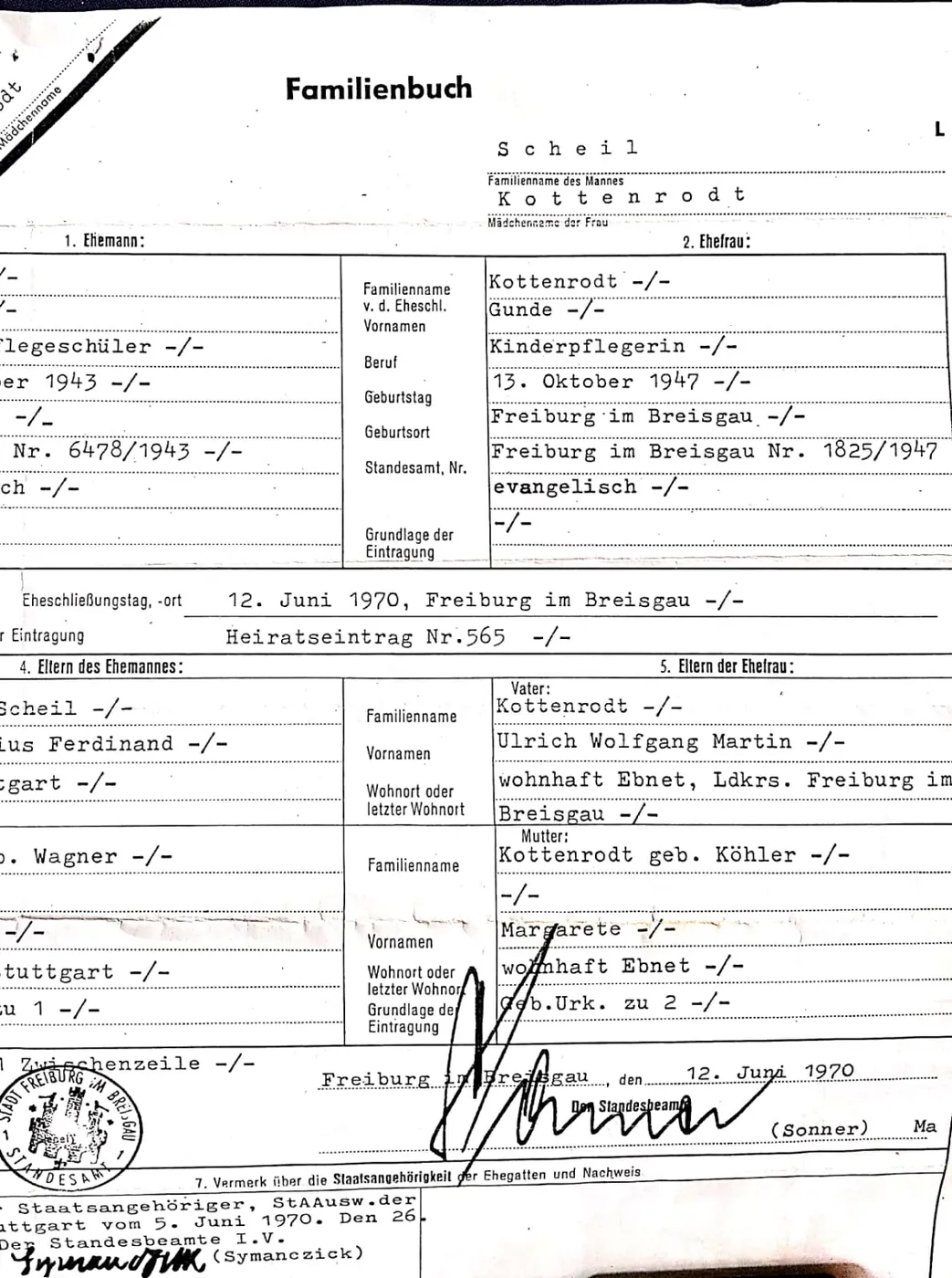
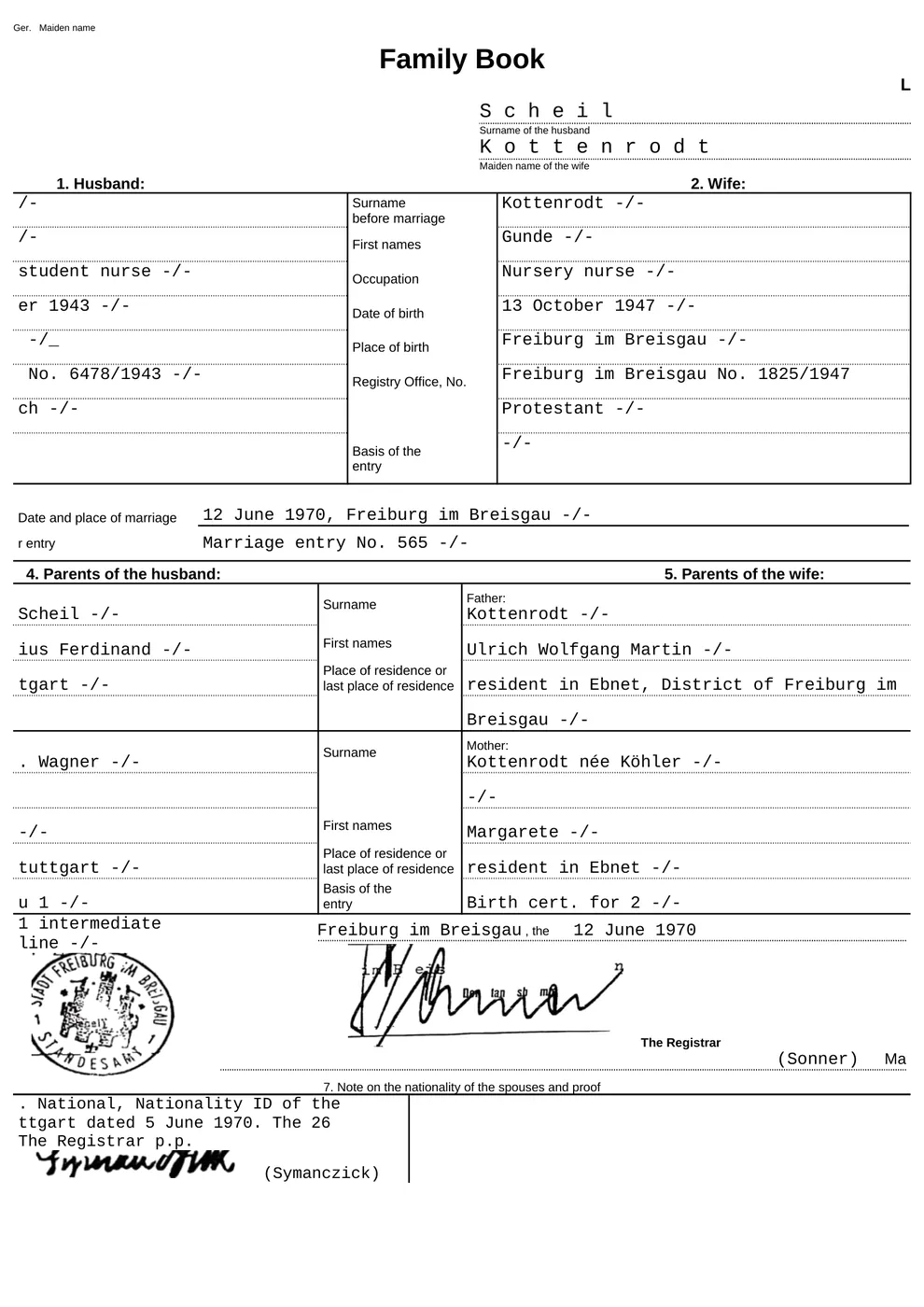
One practical sequence is to OCR a copy of the PDF, search for a few known terms, and inspect the text on every page type. Then test the processed PDF in Studio. If the import still doesn’t produce useful editable content, convert the OCR result to DOCX and check that document instead. Keep the original scan unchanged throughout.
Avoid flattening or rebuilding a PDF without checking what it contains. A PDF that looks like a single scan may also contain vector text, metadata, or other elements. Flattening can discard content that isn’t obvious on the page. Preserve the original and compare the processed output page by page.
Alternative 3: use a document workflow when a CAT project isn’t required
Some jobs need a translated document, not a Studio package, translation-memory leverage, or segment-level project management. In that situation, a document-translation tool can be a separate option. The choice is relevant when the priority is a readable translated file with tables and headings in place, rather than working inside a traditional CAT project.
How it works in ChatsControl: upload a scanned PDF or image, let the service read the page, and receive a formatted Word file that follows the page layout. The scan workflow rebuilds the page in Word, including text, tables, fields, and page elements such as stamps and signatures, then checks the reconstructed copy against the page before translation. The service also provides side-by-side source and translation review, which can help a translator inspect the result.
That route doesn’t replace Trados Studio for work that needs translation memories, project packages, segment-level management, or team vendor workflows. ChatsControl is a document-translation tool, not a full CAT tool or TMS. Handwriting and very poor-quality scans also remain difficult to read reliably, so a human needs to check the source and the output.
A typical situation is a short scanned form where the client needs a formatted translation but hasn’t asked for a CAT package or TM update. The document route can reduce the setup work associated with building a DOCX for a CAT project. A translator can still use a CAT tool for the parts that need terminology control or project-specific resources, but the document service alone won’t supply those CAT functions.
Choose this route only after confirming that cloud processing is acceptable for the document. ChatsControl is a cloud service, not an offline or on-premise installation. The product has optional retention settings, and uploaded documents are auto-deleted after 30 days by default. Those controls don’t change the need to follow your agency’s confidentiality rules.
Compare the routes by output, control, and risk
The right alternative to PDF Assistant depends on what you expect to hand back. A searchable source PDF, an editable CAT file, and a formatted translated document are different deliverables. The table below is a decision aid, not a ranking.
| Route | Main output | Useful when | Main checks or limits |
|---|---|---|---|
| PDF Assistant | DOCX prepared through a Trados add-in | You want a workflow within Studio and the current add-in works in your setup | Current availability, Word requirement, OCR recognition, layout, tags, and segmentation |
| Microsoft Word PDF conversion | DOCX | Word can produce editable text and you want to inspect the file before Studio | Confirm that image-only pages become text, not just embedded images |
| OCR to searchable PDF | PDF with visible page images and a text layer | Searchability or text access matters more than immediate CAT editing | OCR accuracy, reading order, text selection, and Studio import behavior |
| OCR followed by DOCX conversion | Editable Word file | You need a CAT-friendly file and can review the conversion | OCR errors, layout reconstruction, tables, hard returns, and tags |
| Document-translation workflow | Formatted translated Word file | The deliverable is a translated document, not a CAT project | Cloud and privacy requirements, scan quality, and absence of CAT project features |
| Original source file | Editable source document | The client can provide the file used to create the PDF | Confirm that it matches the final PDF and includes all visible content |
For Studio 2026, RWS’s developer documentation specifies Windows 10 (latest updated version) or Windows 11, at least 8 GB of RAM, .NET Framework 4.8, and a recent dual- or multicore processor. Those are Studio 2026 developer-machine requirements in the RWS documentation accessed 2026-01-01; check the current requirements for your installed release rather than treating the list as a PDF Assistant compatibility guarantee (RWS Studio 2026 developer requirements).
A searchable PDF can be the right intermediate file when preserving the visual page matters. A DOCX is usually easier to correct as a CAT source because its paragraphs and tables are editable. Neither route should skip comparison with the original. If the file contains a signature, a seal, or a handwritten date, preserve the page image as the authority and verify the recognized text against it.
A practical workflow for preparing a scan for Studio
Use this sequence when the delivery needs editable segments in Trados Studio. The steps work with PDF Assistant, Word, or external conversion software; the specific buttons differ, but the checks remain the same.
-
Keep the original and identify the file type. Save an untouched copy of the PDF. Try selecting and copying text from several pages, including pages with tables or stamps. Record which pages behave as images and which contain selectable text.
-
Ask for the source file. Request the editable original from the client if it exists. RWS recommends obtaining the source format instead of relying on PDF when possible, because PDF can add localization effort (RWS notice on PDF conversion technology).
-
Choose the route based on the needed output. Use PDF Assistant if it is available and compatible in your setup. Test Word conversion if you need a DOCX. Choose OCR to searchable PDF if retaining the page image is important, then move to DOCX if Studio needs editable segments.
-
OCR only where the page needs it. When the tool offers image selection, identify the scanned elements rather than applying recognition blindly to every page element. RWS’s PDF Assistant walkthrough describes an option for selecting which extracted images receive OCR (RWS PDF Assistant walkthrough).
-
Check recognition before translation. Compare names, numbers, dates, headings, and table cells with the page image. Search for a known word and verify that copied text follows the page’s reading order. Check stamps, small print, and mixed-language headers separately.
-
Repair the DOCX before importing it. Correct broken paragraphs, misplaced images, tables, missing text, and unwanted line breaks. RWS notes that PDF conversion may create excess tags and hard returns, which can complicate CAT segmentation; the advice is to improve the DOCX before translation when needed (RWS PDF Assistant walkthrough).
-
Import a sample and inspect the segments. Check whether headings, sentences, and table cells appear in a useful order. If the import produces fragmented segments or text in the wrong sequence, return to the DOCX or try another conversion route rather than translating a defective source.
-
Compare the translated output with the original. Studio’s documented workflow produces Word output for non-editable PDFs. Review the translated file against the source PDF, especially where translation length can move text or where graphics carry meaning (RWS PDF documentation).
Keep this checklist with the project:
| Check before translation | Pass condition |
|---|---|
| Page coverage | Every page has been checked, including mixed text and image pages |
| OCR text | Names, numbers, dates, and key labels match the source image |
| Reading order | Text follows the visible order, including columns and tables |
| DOCX structure | Headings, lists, cells, and paragraphs are editable and usable |
| CAT segmentation | Hard returns and tags don’t split content into unusable fragments |
| Visual reference | The untouched PDF remains available for review |
| Delivery expectations | Client understands whether the result is a CAT project or a Word document |
The checklist catches the most expensive error early: translating a conversion defect as though it were source content. A missing line in the OCR output won’t fix itself during translation. It can only be caught by comparing the text against the page.
Pitfalls that make a conversion look better than it is
A DOCX can look tidy while still being structurally awkward in a CAT tool. PDF pages position text and images visually, but the conversion has to infer paragraphs, tables, and reading order from those positions. A page that looks like a table may be a set of text blocks positioned beside one another. The converted file may therefore contain separate paragraphs where a translator expects cells, or one long paragraph where the page shows distinct lines.
RWS’s PDF settings documentation describes layout recovery modes called Flowing, Continuous, and Exact, plus options for image recovery and table detection. Those controls can customize conversion, but the Studio 2022 help doesn’t claim they add OCR to an image-only page. Check the names and settings in your installed release before relying on them (RWS PDF file-type settings).
Hard returns and excess tags can produce awkward segmentation. A sentence broken into multiple lines in the source may appear as separate segments, while content that should be separate may be merged. If the resulting segments don’t reflect the content’s meaning, repair the DOCX before translating. Importing a poorly structured file and hoping that the CAT tool will reconstruct the intended layout is not a reliable fix.
OCR mistakes can be subtle. A misspelled name may still look like a word, and a wrong digit may still look like a number. Compare high-risk content directly with the image: names, reference numbers, dates, amounts, legal terms, and text inside stamps. For handwriting and heavily degraded scans, don’t assume OCR can provide a dependable transcript; the product documentation lists handwriting and very poor-quality scans as limitations for automated reading.
A PDF may also include security restrictions or rely on fonts unavailable on the conversion machine. RWS identifies security restrictions and missing fonts among factors that can affect conversion. If a file fails, check whether the source is protected and whether the layout depends on fonts that aren’t installed before blaming Studio or the OCR engine (RWS PDF Assistant walkthrough).
The forum report about PDF Assistant in Studio 2026 is a useful reminder to test the actual plugin build, but it isn’t a reason to label the tool universally broken. The discussion includes a reply saying the reported issue had been fixed in version 3.0.2.1. Since that is a forum report and follow-up from 2026, verify current behavior with a representative file rather than treating an individual experience as a general failure rate (RWS Community discussion).
FAQ
What is the best alternative to PDF Assistant for image-only PDFs in Trados Studio 2026?
The best route depends on the required deliverable. Try Word conversion or external OCR followed by DOCX preparation when the job needs editable CAT segments; use a searchable PDF when retaining the scan’s visible page matters more. Test the route on a representative page and inspect the result before translating.
Can Trados Studio 2026 translate an image-only scanned PDF without OCR?
No. RWS documentation says the built-in PDF technology cannot convert a PDF page that consists only of a scanned picture. Use OCR or another conversion route to create readable text before expecting a text-based CAT workflow to process it (RWS PDF documentation).
Can I use OCRmyPDF or Tesseract to prepare a scanned PDF for Trados Studio?
Both can be used to create searchable PDF output with a text layer, but a searchable PDF isn’t the same as a checked DOCX. Test the processed PDF in Studio; if the import doesn’t produce useful editable segments, convert it to Word and check the text and layout against the original.
Should I OCR a PDF to searchable PDF or convert it to DOCX before importing it into Trados?
Choose searchable PDF when the page image should remain the visible reference and text search is the immediate goal. Choose DOCX when the CAT project needs editable paragraphs and tables. Either way, verify OCR, reading order, tags, and layout before starting translation.
Does PDF Assistant still work with Trados Studio 2026?
RWS documentation describes PDF Assistant as an available application, but its Studio 2024 documentation doesn’t verify the current AppStore listing or behavior in every Studio 2026 environment. Check the present listing, installed add-in version, and requirements, then test a sample file (RWS PDF documentation).
Does PDF Assistant require Microsoft Word?
RWS’s 2023 walkthrough says PDF Assistant requires Microsoft Office and describes Word as the conversion component behind the workflow. The walkthrough’s Office compatibility statement may have changed, so check the current app requirements before relying on a particular Office installation (RWS PDF Assistant walkthrough).
Will OCR preserve the scan’s layout and recognize every word correctly?
No. OCR can introduce recognition errors or omissions, and PDF conversion can shift text and images or distort complex layouts. Compare the output with the original page, paying particular attention to tables, names, dates, stamps, signatures, and small print (RWS PDF Assistant walkthrough).