A scan can look like a PDF and still contain no text for your CAT tool to read. If the file is only a page image, the translator needs OCR first; if it already has a text layer, a second OCR pass may create more cleanup than useful text.
ABBYY FineReader is one possible document-processing tool, but translators don’t all need the same combination of OCR, PDF conversion, privacy and layout handling. A workable alternative depends on the file in front of you, the language, your technical comfort and what you need to hand into the CAT tool.
This guide compares practical approaches rather than naming one universal winner. It covers free command-line tools, desktop OCR, language setup, error checking and document-translation workflows, with a checklist you can reuse on your next scan.
First identify the PDF you have
A PDF can contain accessible text, a page image with an OCR text layer, or only page images. Those three cases call for different work: extracting existing text, checking an existing recognition layer, or creating one from scratch. A translation technology expert explains the distinction.
A PDF is not necessarily a document structure in the way a Word file is. In a PDF, text can be placed at coordinates on a page rather than stored as paragraphs and tables. Extraction can therefore turn a visually tidy page into a stream of lines whose reading order or table relationships need repair.
Start with a quick test: try selecting a sentence in the PDF and copying it into a plain-text editor. If the text appears in a sensible order, the PDF probably contains an accessible text layer. If you can select nothing, or the copied text is empty, the page may be image-only. If the copied content is scrambled, incomplete or full of strange characters, treat the existing layer as suspect and compare it with the page image.
| PDF type | What the file contains | What to do before translation |
|---|---|---|
| Accessible-text PDF | Text that can be selected and copied | Extract or convert the text, then check reading order and formatting |
| Image PDF with OCR layer | Page image plus recognized text behind it | Test the layer; repair or rerun OCR if the text is faulty |
| Image-only PDF | Page images with no usable text layer | Run OCR, then compare the result against the original |
A searchable PDF is useful because its text layer lets you search and select words while the page image remains visible. A Word file, by contrast, can make text easier to edit or bring into a CAT workflow, but conversion can alter layout. Neither output should be treated as a substitute for the source image when visual details matter.
As Kevin Lossner writes in his PDF workflow article: “It’s important to remember that no single solution will cope effectively with every possible PDF scenario.”
That point matters when a PDF is protected, contains unusual layouts or already has imperfect text. Choose a workflow after checking the file rather than applying the same conversion preset to every project.
What translators need from an OCR alternative
OCR, or optical character recognition, converts visible marks on a page into machine-readable text. OCR software doesn’t know what a sentence means; it predicts which characters appear in an image. Translation still depends on checking that prediction, especially when a wrong digit, name or symbol could change the source meaning.
A translator choosing an ABBYY FineReader alternative should check the whole workflow, not just whether a product says it can recognize text. The useful questions are practical:
- Can it process the PDF type you receive?
- Does it support the source language through an available OCR model or language pack?
- Can it produce the output you need, such as a searchable PDF or editable text?
- Can you run it locally if the document can’t leave your machine?
- Can you check the OCR against the original page without losing the visual reference?
- Does the workflow preserve the information your CAT tool needs, or will you need to reconstruct tables and columns?
No OCR option removes the need for quality control. A clean-looking output can contain a wrong letter, and a plausible sentence can hide a recognition error. The original image remains the reference point.
I tested a handwritten manuscript in cursive, the hardest scan there is. When one model read it once, 14.5% of the letters came out wrong; now a page with handwriting is read three times in full-resolution strips plus once whole, and a judge settles one text. On the same manuscript the copy went to 5.4% wrong letters, and where the readings disagree, the Word file carries a comment with the alternatives; those comments held 7 of the 10 remaining errors.
That case is about handwriting, not a general benchmark for printed OCR software. A printed page and a cursive manuscript create different recognition problems, so use a test page from the job rather than assuming one result predicts another.
OCRmyPDF and Tesseract: flexible, but hands-on
OCRmyPDF is a command-line tool that adds OCR text to scanned PDFs. It uses Tesseract language packs for recognition, so the language setup matters as much as the command you run. The OCRmyPDF language documentation says English is assumed unless you specify other languages.
That default can catch translators out on bilingual documents. A page with English letterhead and a body in another language may not be handled as intended if you leave the configuration at its default. Specify the language or languages needed for the document, and confirm that the relevant language data is installed.
OCRmyPDF’s documentation gives installation routes including Homebrew, apt, dnf, MacPorts and a FreeBSD package. It also notes that distribution packages can lag behind the latest versions. Source or uv installations require dependencies such as Python, Tesseract and PDF rasterization support, with setup varying by platform. Check the installation guide for the current steps rather than copying an old command from a forum post.
Tesseract can be used directly from the command line when you want control over recognition and output. Its documentation describes LSTM/neural recognition with --oem 1 and Legacy Tesseract with --oem 0; the image workflow requires language data files. The same documentation shows combining language codes, for example eng+deu, and notes that the order of languages can affect recognition time and output. See Tesseract’s command-line documentation.
Tesseract can create plain text, searchable PDF, hOCR and TSV output. A searchable PDF keeps the page image with a separate searchable text layer, which is often useful for reference checking. hOCR and TSV are structured outputs that may help in a custom workflow, but they aren’t automatically a clean translation-ready Word document.
| Approach | Useful when | Trade-off |
|---|---|---|
| OCRmyPDF | You want searchable PDFs and can work with a command-line setup | Installation and language packs need attention |
| Tesseract directly | You want to choose output formats and recognition settings | You need to manage language data and inspect the output |
| Desktop OCR application | You prefer a graphical workflow and document controls | Check the actual language support, export options and licensing before choosing |
| Document-translation service | You need OCR as part of preparing a translation, not just a text layer | A cloud workflow may not fit strict local-processing rules |
A forum participant in a Chinese OCR discussion wrote: “I use Tesseract often to OCR English PDFs.”
The quote describes one person’s English-PDF workflow, not a universal accuracy result or proof of support for every language. If your source is Chinese, test a representative page and check that the required language data is available in your installation.
Another participant in the same Chinese OCR thread said: “The results weren’t perfect, but they were pretty good for a free piece of software!”
The useful takeaway is modest: free OCR can be worth testing, but an imperfect result still needs review. Don’t turn an anecdote about one low-quality textbook scan into an accuracy promise for a different script, image or job.
Desktop OCR and document workflows
A desktop OCR application can suit translators who prefer menus, visual previews and document exports to terminal commands. The dossier describes products in this category that offer OCR, PDF management, Office-format export and batch conversion, while another desktop option focuses on converting PDFs into editable, shareable or archival documents. The features and licensing can change, so check the current product page and test the output before committing to a workflow.
Feature lists don’t answer the main translation question: will the resulting text be usable in your CAT tool? A conversion may recognize every line but still scramble columns, split words or flatten a table. Review the output in the same kind of document your project will use, not just in the OCR application’s preview.
The dossier’s checked price details are a snapshot, not a current quote: one desktop OCR product page displayed $79 for an Essential edition against $129 and $149 for an Elite edition against $189 on 2026-02-20. A separate product listing showed $499 for an Ultimate edition and $149 for a Standard edition on 2026-02-20, although the fetched product page itself didn’t confirm those amounts. Promotions, taxes and regional pricing may change; verify the checkout price before buying.
Those figures don’t establish that one package is better value for a translator. Compare the total cost with how often you process scans, whether you need batch conversion, and how much time you spend correcting the output. If you handle only occasional scans, a free command-line workflow may be worth learning. If you process files regularly and want a graphical interface, a desktop product may be a better fit, provided its language coverage and output pass your tests.
A practical evaluation should use the same sample page across candidate tools. Include a page with body text, a table, a header or footer, and any symbols or mixed-language content that appear in real jobs. Save the recognized output and record the corrections you had to make. A short test is more useful than a feature list when the important question is whether the tool reads your source accurately enough for your workflow.
Language, privacy and scan quality
Multilingual OCR means more than finding a product page that lists many languages. The OCR engine needs appropriate language data, and the workflow needs to apply it to the document. OCRmyPDF’s documentation says its recognition relies on Tesseract language packs and that you can specify multiple languages. Tesseract’s documentation gives examples such as eng+deu and warns that language order can affect time and output. Check the OCRmyPDF language guidance and Tesseract’s command-line examples.
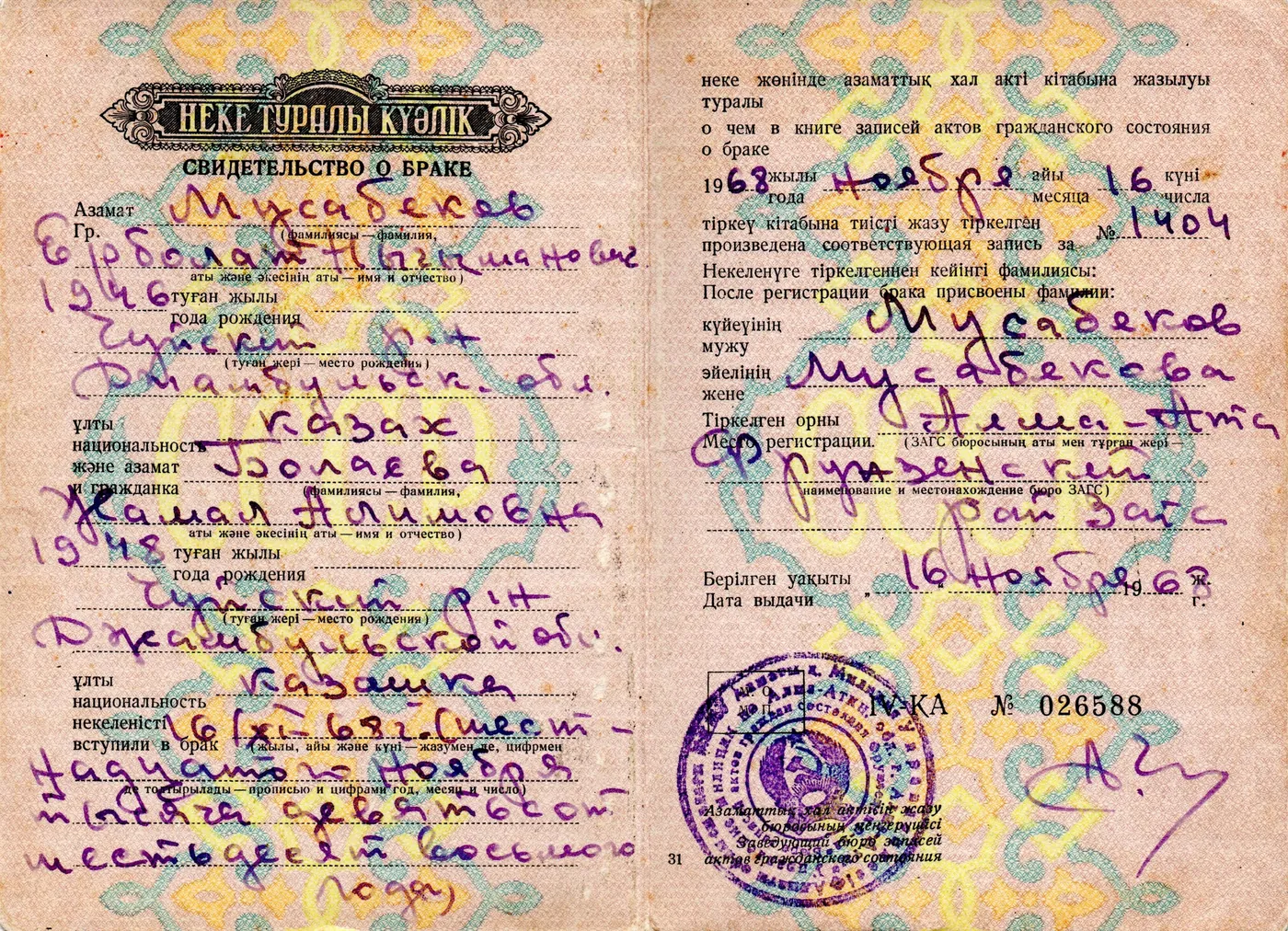
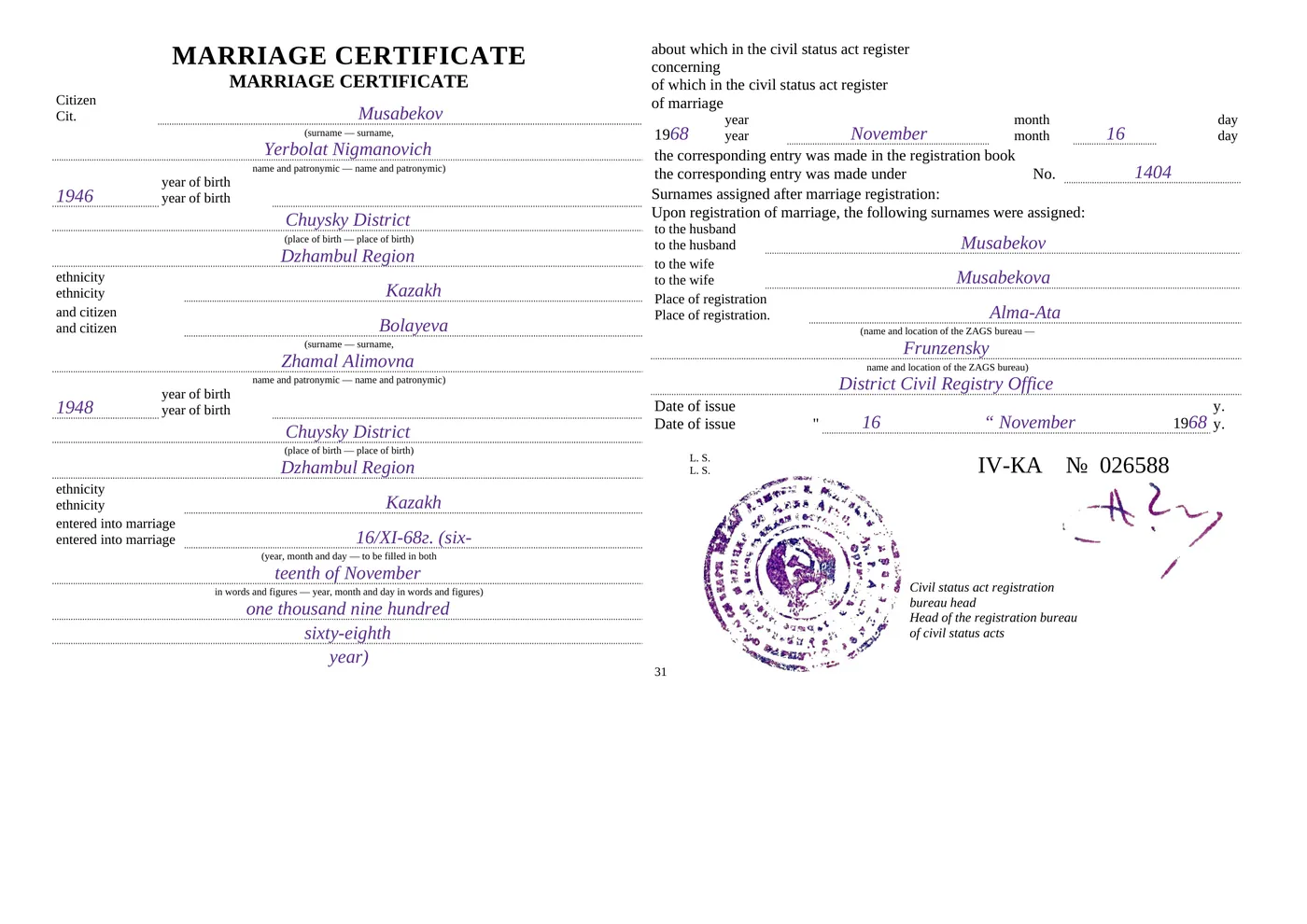
Chinese OCR illustrates why language-specific testing matters. A translator in a forum discussion reported that a desktop OCR workflow struggled with their Chinese documents and asked for an alternative that wouldn’t require uploading sensitive client PDFs. That post dates from 2018-11-27, so it is an anecdote, not a current product comparison. Still, the underlying decision remains useful: if a document is sensitive, check where processing happens before you upload it.
Local OCR can keep a document on your own computer, but it brings setup and maintenance work. OCRmyPDF documentation lists different installation paths by platform and notes that packages may not include the latest version. A local setup also needs its required language data and dependencies. A cloud service can reduce local setup but changes the data-handling question: read its retention and processing terms before sending client material.
ChatsControl is a cloud document-translation tool, not a local OCR utility or a full CAT tool. In ChatsControl, you upload a scanned PDF or image, the system reads the page and builds a formatted Word copy, then translates that document. The service has optional retention settings, and uploaded documents are auto-deleted after 30 days by default. That workflow may suit a translator who needs a formatted document translation, but it isn’t the right choice for air-gapped work or strict on-premise requirements. See ChatsControl.
Scan quality changes what you can reasonably expect from any option. Low resolution, skew, shadows, bleed-through and handwriting can make characters ambiguous. A stamp or signature can also matter visually even when OCR can’t read it as text. Keep the original PDF open beside the converted output and compare the parts that affect meaning.
People often photograph documents sideways or upside down. Before anything is read, every page is checked for being upright; on our test set that check was right on 39 of 39 upright pages, and pages found turned were set upright correctly 26 of 26 times.
Those results describe this orientation check on its test set, not OCR accuracy across documents or languages. A page can be upright and still be too blurry, faint or damaged for dependable recognition.
A translator’s OCR-to-CAT workflow
The aim is to give the CAT tool usable text while keeping the original page available for visual checks. A recognized text layer doesn’t preserve every layout relationship, so separate text preparation from layout verification.
- Identify the PDF type. Try selecting and copying a sentence. Check whether the file already has usable text, an imperfect OCR layer or only images.
- Pick an output for the job. Use a searchable PDF when you want the image and text layer together. Use editable text or Word when you need to prepare content for editing, but check the conversion for reading order and layout changes.
- Set the OCR language. Install and specify the expected language or languages. Don’t assume a multilingual document will be detected correctly from a letterhead or its first few lines.
- Run OCR on a representative sample. Test a page with the document’s real fonts, tables, language mix and scan quality before processing the full file.
- Compare the output with the source. Check numbers, names, dates, symbols, Greek letters, subscripts and superscripts. Correct the text against the page image.
- Import the cleaned text into your CAT tool. Keep the original PDF available in a preview or beside the working file so you can check visual details while translating.
- Review the translated document separately. Confirm that tables, columns, labels and page references still make sense in the target language.
ChatsControl follows a different route when the task is translating a document rather than preparing source text for a CAT project: upload a scanned PDF or image, let the service read and rebuild the page as a formatted Word file, then review the translated document. The workflow includes a bilingual side-by-side view and quality checks, but the tool doesn’t provide translation memory or segment-level project management. Use it as one document-translation option, not as a replacement for a CAT tool when you need those project features.
Kevin Lossner warns in his PDF conversion article: “Careless use of default settings inevitably causes enormous headaches later in processing.”
For translators, that warning translates into a simple habit: check the language settings, test output and inspect the page before starting the translation. A default run that looks successful can still put the wrong characters into the text layer.
OCR mistakes that cause trouble later
OCR errors don’t stay confined to the conversion step. A wrong character can be copied into a reference translation, searched as if it were correct or used to populate a term list. Treat OCR output as a draft transcription, not as source text verified by a human.
Watch for these failure points:
- Numbers and dates: compare each digit against the image, especially in tables, IDs and forms.
- Names and terminology: one character can turn a name into an unfamiliar word or make a repeated term inconsistent.
- Greek letters and scientific notation: the source may contain characters that look similar to Latin letters or digits.
- Subscripts and superscripts: OCR may flatten their position or misread their relationship to the main text.
- Columns and tables: a converter can interleave text from separate columns or detach a value from its label.
- Headers, footers and page numbers: extracted text may place these in the middle of the body.
- Stamps, seals and signatures: images may carry information that the OCR layer doesn’t represent as text.
- Handwriting and damaged scans: character recognition becomes unreliable when the marks are unclear.
The PDF workflow guidance by Kevin Lossner specifically warns that OCR can introduce errors with subscripts, superscripts and Greek letters. The same guidance recommends keeping the original PDF available so you can check extracted text against the page.
The correction strategy depends on the cost of an error. A routine document with clean printed text may need a focused review of suspicious fields and formatting. A technical or legal document may require line-by-line comparison, especially where numbers, names or symbols carry meaning. The dossier doesn’t provide a general error rate for any tool, so don’t infer one from a single page or forum comment.
A useful review record can be simple: mark each correction, note whether it came from a language setting, image quality, layout or character confusion, and use that record to decide whether the tool suits the next job. If one page repeatedly breaks the same way, changing the settings or choosing another workflow may save more time than correcting every output by hand.
Quick comparison and test checklist
| Need | Option to evaluate | What to verify before using it |
|---|---|---|
| Free OCR with configurable output | Tesseract | Required language data, command-line comfort and output format |
| Searchable text layer for scanned PDFs | OCRmyPDF | Installation route, language configuration and PDF compatibility |
| Graphical OCR and document conversion | Desktop OCR application | Current language support, export format, batch needs and license terms |
| Translation of a scanned document into formatted Word | ChatsControl | Cloud suitability, scan quality and whether you need CAT-tool project features |
Use this checklist to compare tools on a real sample:
- Choose a page that reflects the scan quality and language mix in your project.
- Check whether the page is image-only or has an existing text layer.
- Confirm the software’s available language data before processing.
- Compare the OCR output against the image, including digits, names and symbols.
- Check tables, columns, headers and reading order in the exported file.
- Keep the original PDF available for visual reference.
- Consider where the file is processed if the document is confidential.
- Record corrections and setup time, then compare the total workflow rather than the OCR result alone.
No row in the table is a universal recommendation. A command-line tool can be a good fit for a translator who wants control and can manage dependencies; a desktop product can make sense for someone who prefers a graphical interface; a document-translation service is a different category from an OCR-only tool. The right choice is the one that fits the document and the review process you can actually maintain.
FAQ
What is the best free ABBYY FineReader alternative for translators?
OCRmyPDF and Tesseract are options to test if you want a configurable workflow without choosing a desktop OCR package. Both need setup and language data, so compare them on a representative page before using the output in a translation.
Can translators use OCRmyPDF to prepare scanned PDFs for CAT tools?
Yes. OCRmyPDF can add a searchable text layer to scanned PDFs using Tesseract language packs. Check that the language is configured, compare the text against the original and test how your CAT tool handles the resulting PDF.
Which ABBYY FineReader alternative supports Chinese OCR?
The dossier doesn’t include a current, verified comparison of Chinese OCR support across the alternatives. Tesseract-based workflows depend on language data being installed, so check availability for your platform and test a page from the actual document.
How should translators handle OCR errors in scanned PDFs before translation?
Keep the original PDF open and compare the recognized text against the image. Check names, dates, numbers, tables, Greek letters, subscripts and superscripts instead of assuming that readable OCR output is accurate.
Can I use OCR on confidential client documents?
Local OCR can keep a file on your own machine, but you need to manage the installation and local handling yourself. ChatsControl is cloud-based, so it isn’t suitable for strict on-premise or air-gapped requirements.
Does OCR preserve the layout of a scanned document?
OCR can make words searchable without preserving every table, column or relationship between labels and values. Keep the original page image as a visual reference, and inspect the converted document before importing or translating its text.
Should I use OCRmyPDF or a desktop OCR application?
Choose based on your setup and output needs. OCRmyPDF offers a command-line workflow with language and installation details to manage; a desktop application may suit translators who want a graphical process, but its current language support and exports still need testing.
Can OCR replace a CAT tool for document translation?
No. OCR prepares text from an image, while a CAT tool manages translation segments and related project work. A document-translation service can combine OCR with translation, but that isn’t the same as a full CAT tool with translation memory and segment-level project management.